
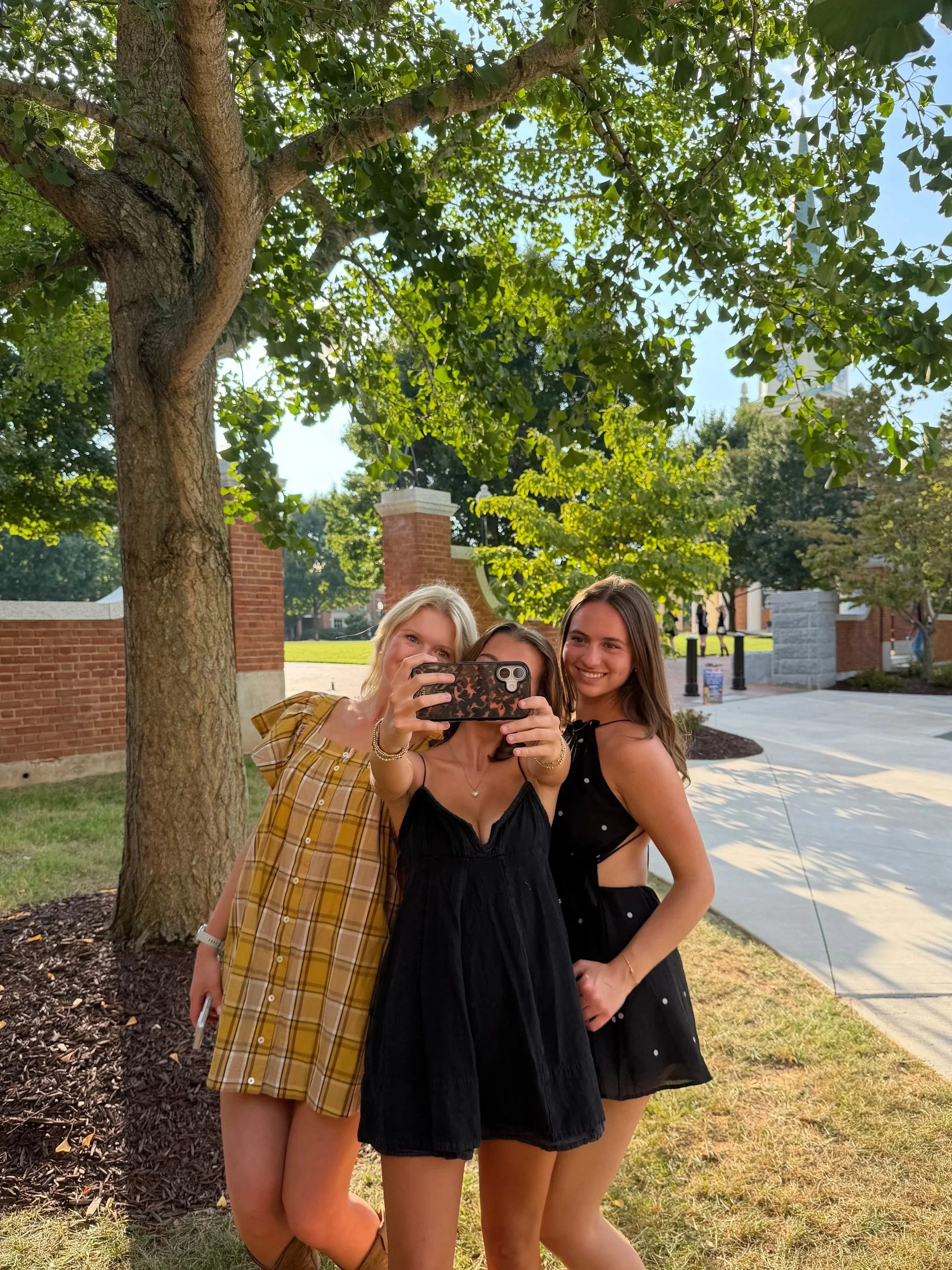
Video Introduction
We're so excited to get to know you! Your introduction video is simply another opportunity for our chapters to learn a little more about you before recruitment begins. Don't worry about having the "perfect" answers. We're much more interested in seeing your personality and hearing what matters to you.
Just relax, be yourself, and imagine you're introducing yourself to someone you've just met.
What to Include
Start by introducing yourself:
2-2.5 mins
Quick intro (name, major, hometown)
What qualities do you look for in a friend? What qualities do you bring to a group (example: family)?
What is something you’ve learned about yourself this past semester at Wake?
Beyond the social aspect, what is one specific way you hope being in a sorority will help you to grow over the next four years?
Video Guidelines
Your video should:
Be 120-150 seconds long.
Feature only you.
Be recorded in one continuous take (no editing or captions).
Be filmed horizontally on a phone, laptop, tablet with a front facing camera (landscape).
Have a simple, non-distracting background.
Most importantly, be yourself. Chapters are looking for authentic conversations and not a memorized speech.
Recording Tips - umpublished youtube link
To help your video look and sound its best:
Audio
Film in a quiet space.
Speak naturally and clearly.
Stay close enough for your voice to be heard easily.
Lighting
Face a window or another light source.
Avoid standing with a bright window behind you.
Framing
Position the camera at eye level.
Frame yourself from about the waist or chest up.
Leave a little space above your head.
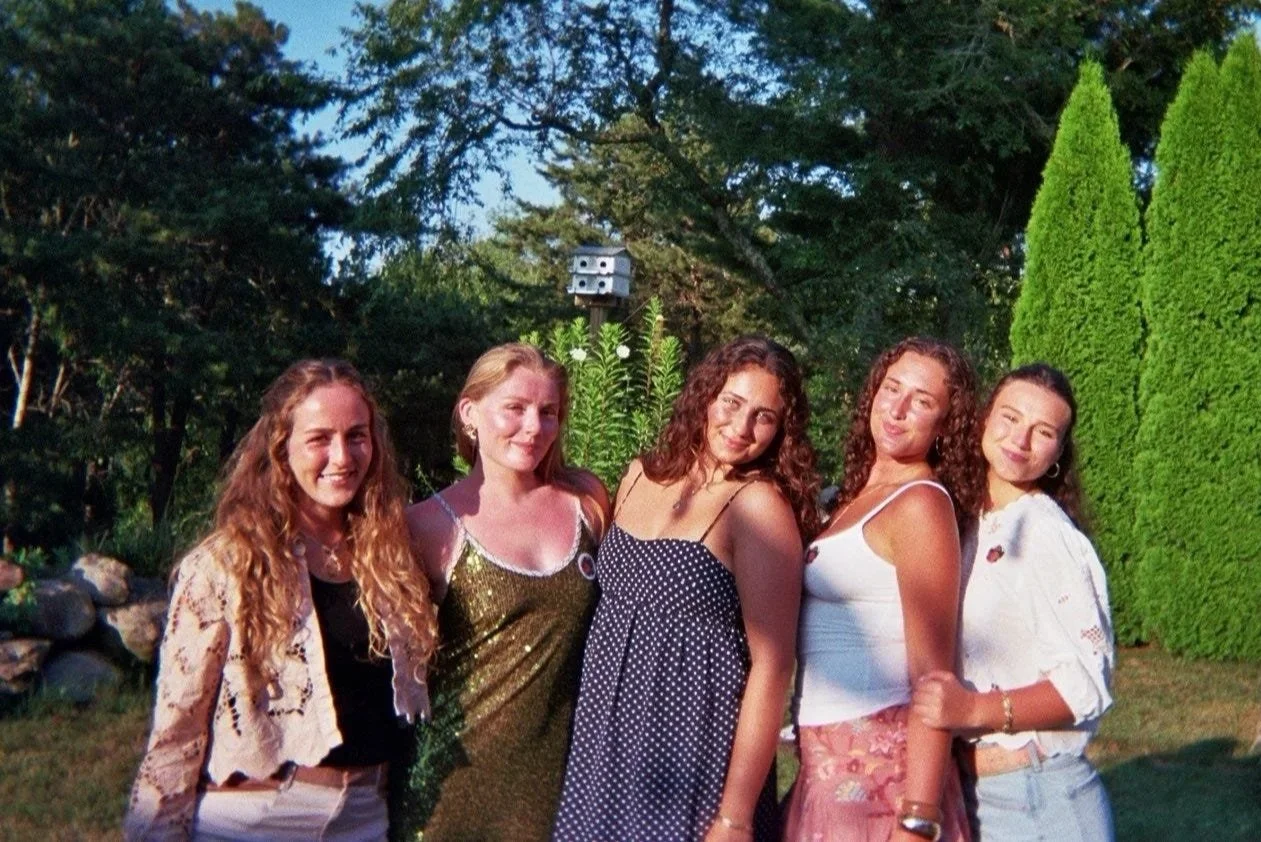
What to Wear
Wear something that makes you feel comfortable and confident.
Think of an outfit you might wear to:
to class
brunch with friends
dinner downtown
There's no need to dress formally so just choose something that feels like you.
Uploading Your Video
Please upload your recruitment video to YouTube as Unlisted. This means your video will not appear publicly on your YouTube channel or in search results, but anyone with the link can view it.
Once your video is uploaded:
Set the visibility to Unlisted.
Copy the YouTube video link.
Paste the link into the registration form when prompted.
Please make sure your video is set to Unlisted, not Private, so our team can access it.
Before You Submit
Before uploading, double check that:
Your video meets the time limit.
Your audio and video are clear.
You have only uploaded one final version.
Once your video has been submitted, it cannot be edited or replaced.